Author: Bartosz Gadomski

  • Running GitHub Actions on non-draft Pull Requests only

    In a modern, well-maintained repository, each pull request is automatically processed by a set of workflows triggered on every commit. This practice is called Continuous Integration (CI) and is one of the most fundamental best practices in software engineering.

    Such workflows can run unit tests, static code analysis, various linters, end-to-end tests, integration tests, spin up the dedicated test environment, etc. This type of automation improves the confidence of the change implemented, verifying whether it is safe to integrate and release.

    Each workflow run consumes “minutes,” as much as it takes to complete the task. It is not rare to use 20, 30, or more minutes collectively on every push to the repo.

    In the GitHub Free plan, we get 2,000 minutes for free. GitHub Pro allows us to use only 1,000 minutes more (source). A simple calculation shows that you’ll “eat up” all available minutes after 100 commits are pushed to the repo in a given month – which, in projects involving multiple engineers, might be consumed within just a few days. While you can purchase additional minutes to avoid blocking your team of engineers, this is an extra bill to pay.

    How can we optimize the “minutes usage” in GitHub Actions?

    As you may already guessed from the title, the idea is to run the workflows only on non-draft pull requests. Draft PRs are often a “work in progress” – early explorations, not-necessarily-following-best-practices draft code that tests the approach and proves the assumptions. In most cases, running all the automated workflows for such PRs is unnecessary.

    Draft PRs can not be merged, so there’s no risk that untested changes will get merged into the target branch. Once PR is marked as “ready for review” and becomes non-draft, all the workflow automation should run at that time and for all following pushes.

    An engineer should create the new Pull Request as early as possible but keep it as a draft until all the code changes are fully implemented and ready for review. Then, based on the CI workflow results, the code should be improved/updated/adjusted to match the integration requirements.

    Implementation

    Due to various issues with how GitHub Actions interprets the if statements defined in a workflow (see this discussion), I decided to implement a custom job that runs on every commit and checks the PR status. It outputs the is-eligible variable, which the following jobs can use to determine whether they can run.

    Our workflow must run on following pull_request workflow triggers:

    • opened – when a new PR is opened,
    • reopened – when previously closed PR is reopened,
    • synchronize – when there’s a push with commit(s) to the branch used by this PR,
    • ready_for_review – when existing draft PR is marked as “ready for review” – this is when the automation will run for the first time. Thanks to this trigger, we won’t need to push to the repo to start the automation,
    • converted_to_draft – when existing PR is converted back to draft.

    Following the docs, workflow only runs when a pull_request event’s activity type is opened, synchronize, or reopened. In our implementation we added two more types (ready_for_review and converted_to_draft) to ensure our pipelines are triggered when these important actions occur.

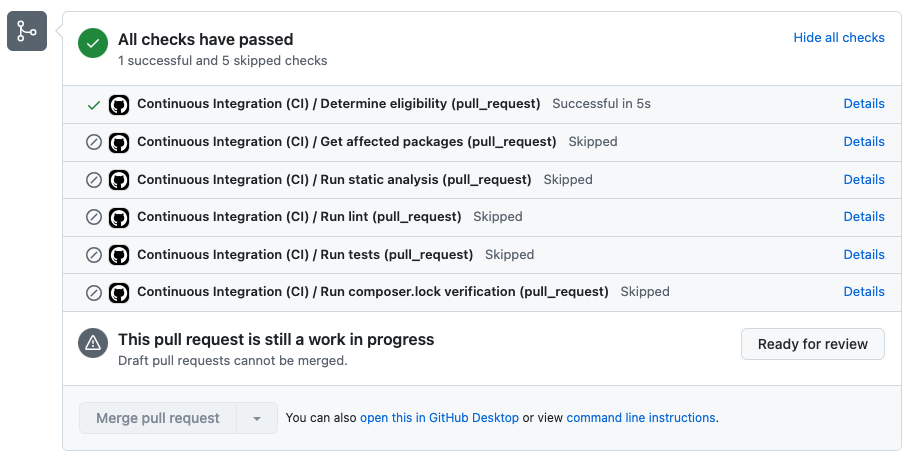
    The get-draft-prs step uses GitHub CLI to get the JSON-formatted list of draft PR numbers in a given repository. The eligibility step processes this JSON, verifying whether the current PR is in that list – if it is, that means it’s a draft PR.

    And that’s how the result looks like for a draft PR:
    Screenshot

    Thanks to this small change, the “minutes usage” in my Teydea Studio project dropped by ~70%.
  • Integrating WordPress Playground into the plugin development workflow

    WordPress Playground is a relatively new thing that allows us to run WordPress directly in the browser – without worrying about servers, just by clicking on a link. There are various configuration options available, making that a really powerful tool we could use for various use cases.

    Folks keeping an eye on the news happening in the WordPress world likely heard about the plugin preview feature introduced in the WordPress.org plugin directory. Engineers can now create a configuration file, a sort of “image” of how the WordPress instance should be configured. With that, users can test the plugin safely in their browsers without installing it on their live or staging websites. Engineers can adjust the configuration file to handle test data import, making it easier to demo the plugin features.

    Basic example with WP-CLI demo data setup

    The configuration file I’m referring to is a JSON file that follows the Blueprint API schema. Engineers can define things like preferred PHP and WordPress core versions (although users can still change these once their instance is running), plugins and themes to install, and can run WP CLI commands (which is a huge advantage).

    For my Teydea Password Reset plugin preview, I wanted to have a few test users created while the Playground instance is spun up. The blueprint.json file looks as follows:

    I’ll not go into the details on all of the elements of this file, as that’s really well documented in the official documentation. What’s the most interesting here is:

    • with the networking feature set to true, the Playground instance will be able to make real external connections – e.g., download a plugin,
    • in the installPlugin step, we install the latest version of the Password Reset Enforcement plugin available on the WordPress.org repository,
    • in the following WP-CLI commands, we import test users with various roles,
    • at the very top, the landingPage key defines the page, which should be loaded first as soon as the Playground instance is ready.

    All of that creates a great user experience (I believe!) – with a single click of a button, user gets the WordPress instance ready for tests, filled-in with necessary data. See how it works in action:

    How the WordPress Playground can improve the plugin development workflow?

    Now, to the main point of this article. As mentioned, there are multiple great use cases for WordPress Playground, one of which is the ability to generate previews of plugins that are still in active development (not yet released).

    The benefits of this are:

    • QA team can test a feature in full separation – only changes applied in a current PR will be included in the preview,
    • feature can be tested against various versions of PHP and WordPress Core with ease,
    • there’s no need to build a complex infrastructure for running the test WordPress instances; no need for maintaining a deployment pipeline (Docker/Git/etc.) – all we need is just a link,
    • no need to pay for third-party providers of the temporary WordPress instances (although these makes perfect sense for other use cases).

    The only difference against the blueprint.json file shared above is how to install the plugin. The installPlugin step can be adjusted to install the plugin from a .zip file loaded from an external URL, but I find the WP-CLI plugin install command better suitable for this task:

    Take note of lines 20-23; we replaced the installPlugin step with a WP-CLI command that downloads the plugin artifact (.zip file) from a publicly available URL (the ZIP_FILE is a placeholder for a Bash script shown below) and installs it while spinning up a new Playground instance. Simple!

    But that’s obviously not just a copy-paste kind of thing; you’ll need the following process changes implemented in your development workflow:

    Step 1: Add or modify the CI pipeline (GitHub workflow, for example) and trigger it on every commit pushed to a Pull Request.

    Step 2: Take the current state of your plugin, run all the build processes you have, and zip the result – just like you’d prepare a final artifact once your plugin is ready for release. Note: You might want to add commit hash to the plugin version and/or zip file name to avoid caching issues; for example: my-plugin.1.2.3-77f923a.zip.

    Step 3: Upload that artifact to a publicly available location, for example, an S3 bucket (the file’s ACL must be set to public). This is important – otherwise, WordPress Playground won’t be able to download the package. Remember to enable CORS configuration to allow GET and HEAD methods for the https://playground.wordpress.net origin.

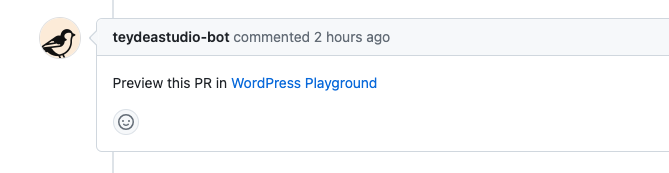
    Step 4. Once the artifact is uploaded, your pipeline should automatically add a comment on the Pull Request, providing a link to the WordPress Playground preview. Here’s how you can leverage GitHub CLI to do that:

    To avoid ambiguity in the above code example:

    • $FILE should be dynamically filled in with the URL to the just-generated artifact,
    • $BRANCH should be the head branch of your Pull Request,
    • $BLUEPRINT_FILE should be the path to the blueprint JSON file in your repository, which is created specifically for the plugin preview feature – the one with WP-CLI for plugin installation.

    Result in action:

    Screenshot

    Conclusion

    With relatively little effort, WordPress Playground can be integrated with the plugin development workflow, providing great value to the engineering, QA, and product teams. Although this article focuses on plugin development, the same approach could be applied to other projects, too: focused on theme development or even whole websites. That’s a really great tool!

    Further reading

    If you’d like to find out more about this topic, below are the resources I found helpful:

  • Filtering the theme.json file values (such as default color palette and other global styles) in WordPress

    The theme.json file is a central place for various WordPress theme settings. Things like color palettes, gradients, fonts, block spacing, and other global styles and default settings of the block editor are all defined in this single file.

    There are a few options to adjust the values defined in that file. Within the Site Editor, things defined at the theme.json level can be customized and saved in the website options table, thus decoupled from the theme.json file itself.

    There’s also a built-in tool in WordPress core that can be used to generate a new block theme based on the customizations made. That’s handy if one prefers building the theme “live” rather than from the IDE point of view.

    In both cases, however, a connection with the original theme is lost, at least partially in the first and fully in the second. That’s not always a problem; sometimes, it’s expected and desired. But what if we want to keep the “foundation,” the basic theme, and be able to receive its updates as soon as they are available but still modify some values of the theme.json file to meet the project’s specific needs?

    How to filter the theme.json data with PHP

    Four new filters were introduced in WordPress 6.1 (released on November 2, 2022) that can be used specifically for that purpose. These filters’ scope varies depending on which data layer is to be modified:

    All of these hooks are defined in the WP_Theme_JSON_Resolver class and are passing the WP_Theme_JSON_Data object as a first argument; this object can be used in a custom callback function to update the underlying data.

    Filtering default theme.json file data

    The first hook on the list allows filtering default theme.json data, as provided by WordPress. These include various Block Editor settings (like whether or not to show the “appearance tools,” the core duotone, gradients, and shadows configuration, common spacing and typography configuration, etc.

    Let’s assume you want to modify the default “black” color – it is set to #000000 in WordPress core, but most modern websites rarely use “pure black” color for text or other elements. Let’s say we want to change it to #111111, but rather than defining the custom color, we still want to refer to it as core “black.”

    That’s where the wp_theme_json_data_default filter comes in handy:

    This filter above will modify the --wp--preset--color--black CSS variable value from #000000 to #111111. Note: if you’re updating a single element of an array of elements, you must provide a whole array to the update_with method, not only the single updated value. Otherwise, only the provided value will be used, and the rest will be lost.

    This behavior, however, could be used for another purpose – removing default values that are not used and needed. By default, WordPress core provides many colors and gradients, which you might not want to see on your website for many reasons. Using the same hook, you can get rid of them:

    All the remaining elements of the theme.json structure will remain unchanged, so you don’t need to worry about passing the whole theme.json data into the update_with method.

    One more thing to note: the version key should reflect the theme.json file version. You can find which version your theme uses by inspecting the theme.json file, which is usually located in the theme’s root directory. That’s required to ensure that settings will be merged correctly and to maintain required backward and forward compatibility.

    Filtering the theme-related data

    In this following example, I’d like to filter the “Extra Extra Large” (xx-large) font size defined in the Twenty Twenty Four theme, which is currently set as fluid between 2.5rem and 3.27rem. I want to ensure it will always be set to 4rem. In this case, I’ll use the wp_theme_json_data_theme hook:

    Depending on a project’s needs, any required business logic can be applied inside that filter. Rather than displaying the default value of the site’s background color as defined in a theme, you might want to display a “random” background color on every render (because why not?). In this case, it would be as simple as:

    How to filter the theme.json data with JavaScript

    WordPress 6.2 (released on March 29, 2023) introduced a new JS filter (blockEditor.useSetting.before), which allows engineers to modify the theme.json settings before the Block Editor is rendered. This filter allows to modify the block settings depending on the user role, other blocks used on a page, post type, and any other data available in the Block Editor context.

    With this filter, you can modify the settings and block configuration in the Block Editor context; these changes will not apply on the website’s front-end – so the use cases for this approach are quite different.

    If you’re interested more about this topic, please check the “further reading” section below for recommended sources and articles.

    Conclusion

    WordPress hooks mentioned in this article give the engineers much control over the theme.json file contents. That might be useful in some cases, like where a project specifics are to allow users some level of freedom, but still, there should be some validation and protection in place; where certain things should be removed to reduce the size of a CSS rendered on the front-end (front-end performance improvements); or, where some things of a chosen theme should be modified, without detaching the rest of the settings.

    But this will not always be the best choice; sometimes, it’s better to modify the theme.json directly (if it’s a fully custom theme) or to build/export a new theme based on applied modifications. It all depends on the specific needs of a project. But it’s good to have more options!

    Further reading

    If you’d like to find out more about this topic, below are the resources I found helpful when researching this topic for the first time: